OxygenStage · For technical service providers and agencies

The interactive live event
platform, under your brand

You film, you produce, you stream. Now also offer your clients attendee access, audience questions, voting, quizzes and a full event report, on a live page in your own name.
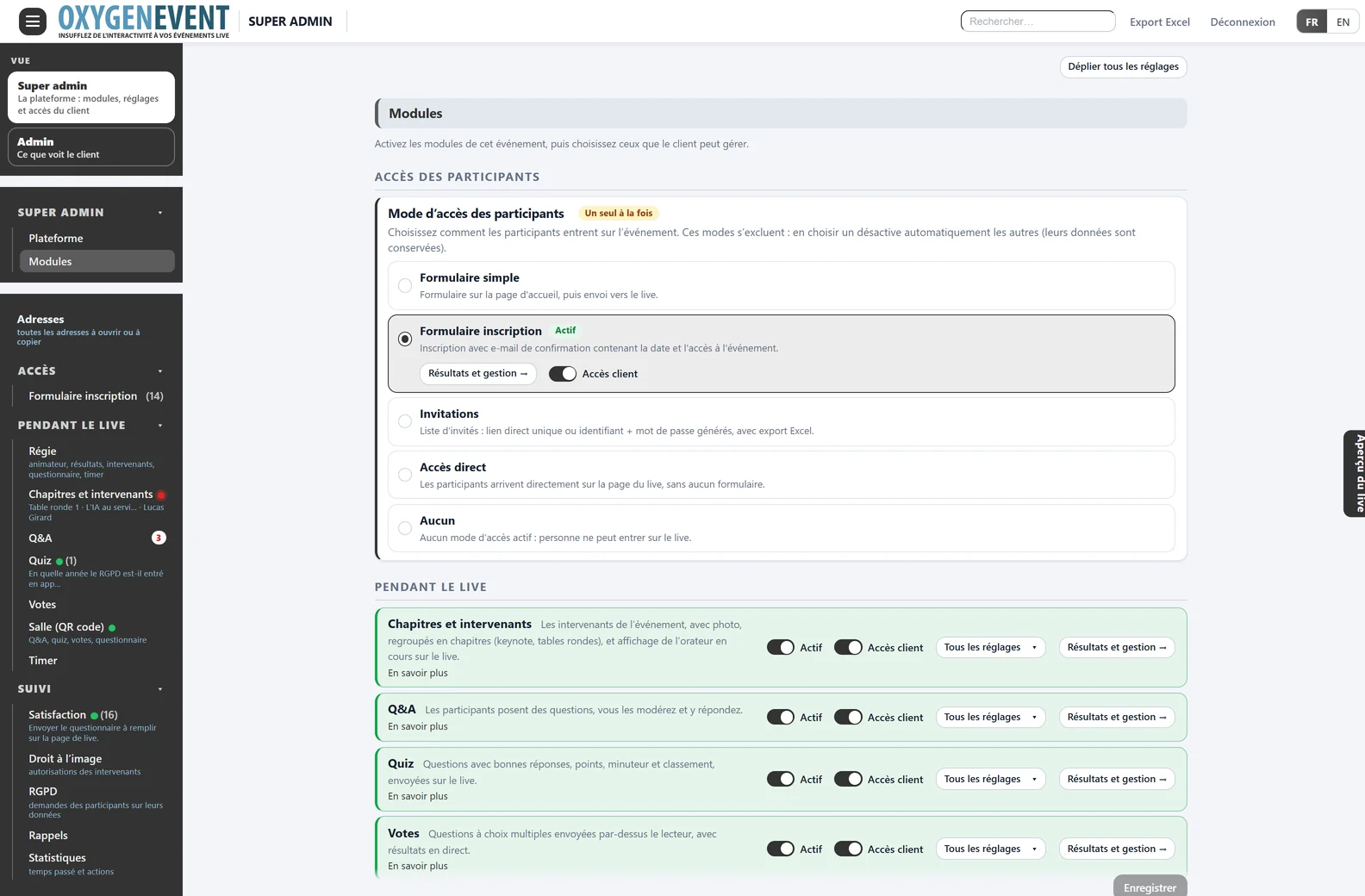
For youSuper Admin: modules and rights for each client
Super Admin page: attendee access mode and modules to enable, with client access module by module
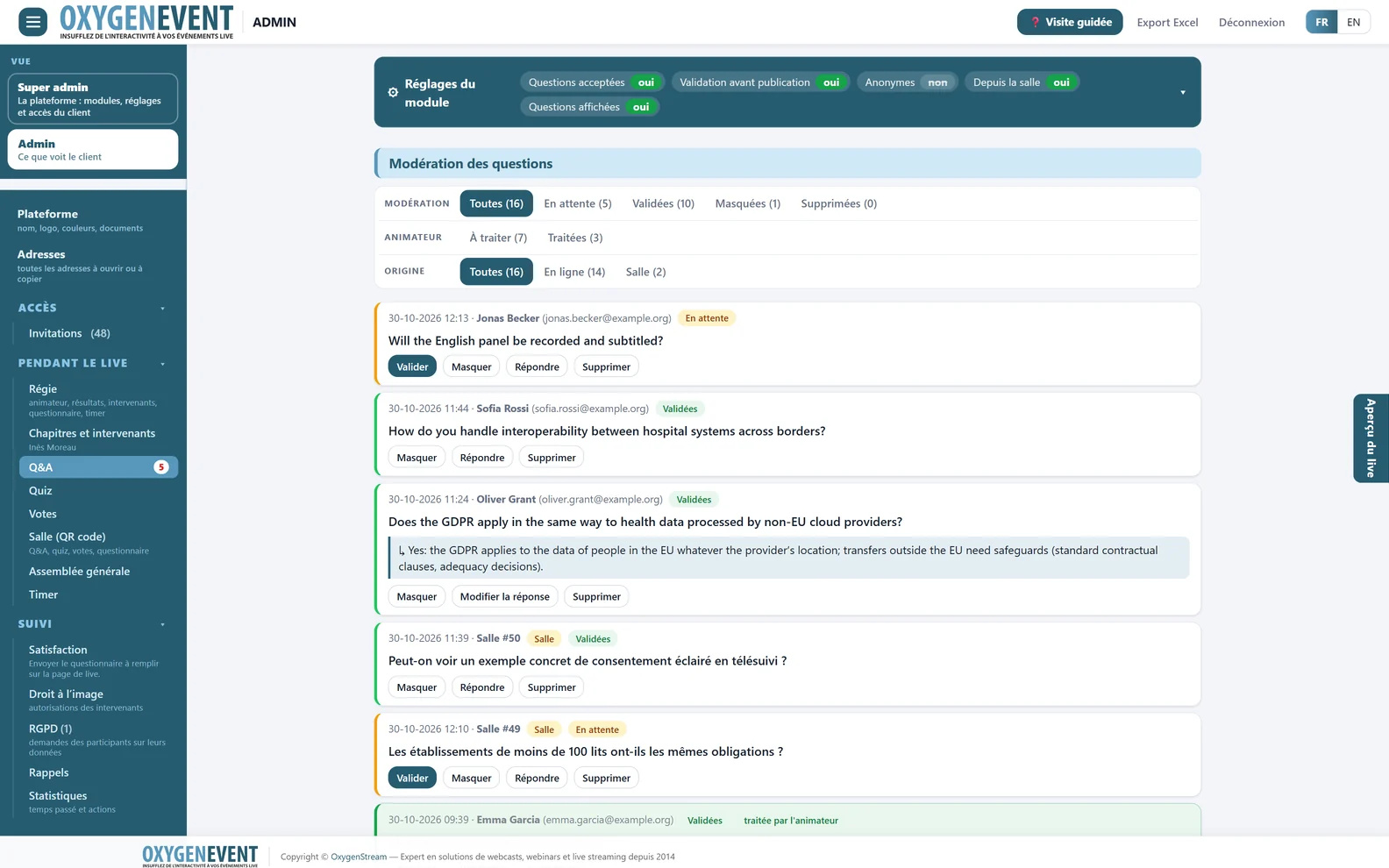
For your clientsTheir admin: settings and moderation for each module
Client's Admin view, Q&A module: module settings and question moderation (approve, hide, reply)
For viewersThe live page, in the event's colours
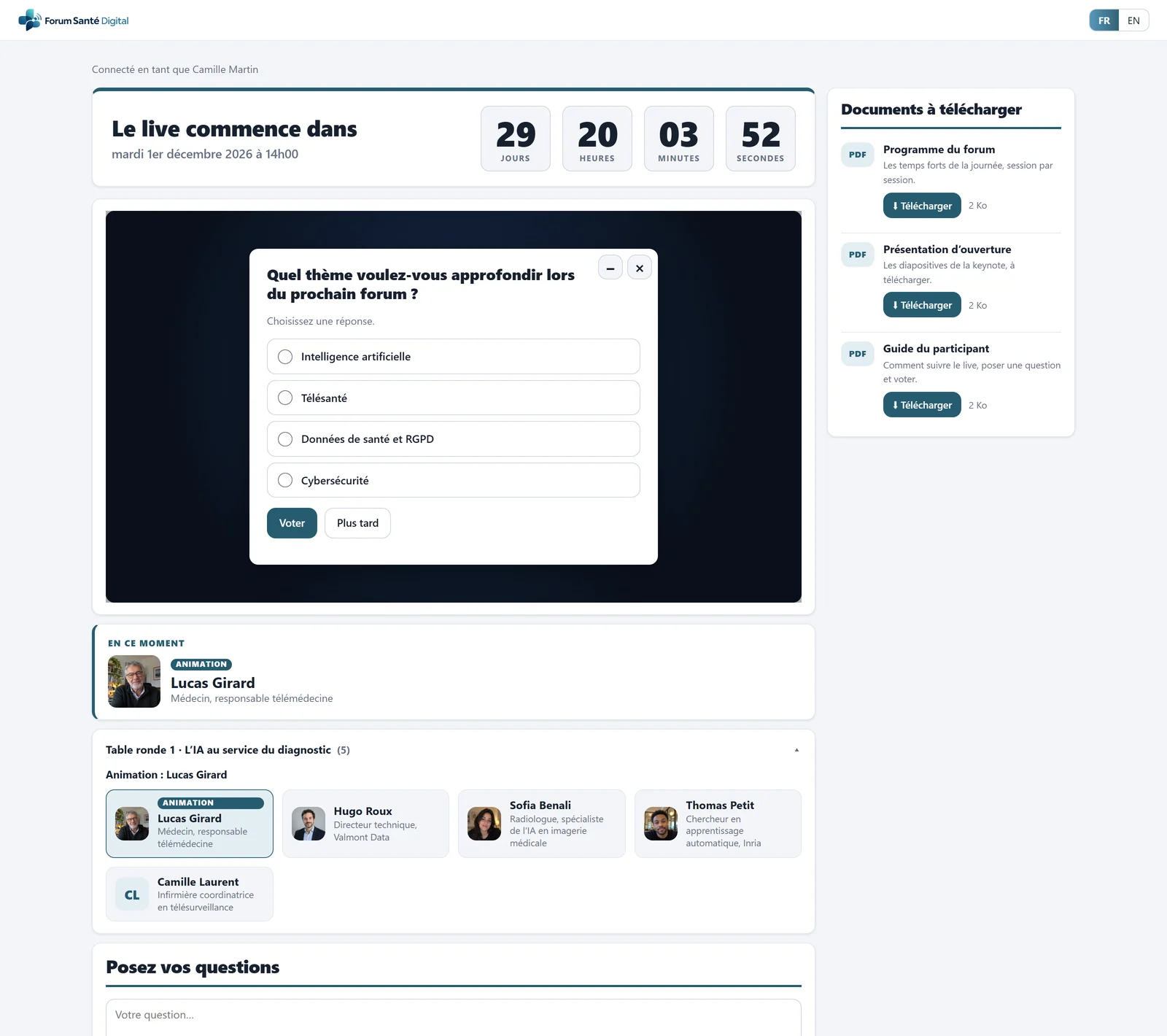
Live page: countdown, video, poll question over the video, speaker on stage and documents

Why OxygenStage

Sell more than video production

Your clients ask you to get their audience involved: asking questions, voting, answering a quiz, measuring attendance. With OxygenStage, that request becomes one more line in your quote, delivered under your name.

One more line in your quotes

The interactive platform comes on top of filming, production and streaming. You offer it, you invoice it, you deliver it.

Your brand, not ours

Product name, logo, browser tab icon, footer and e-mail signature: your clients and their attendees only see you.

You decide what your client manages

For each event, you enable the modules and choose which ones the client sets up alone. You keep control of everything else.

Built for the control room

Results, leaderboard, QR code and Timer each have their own address, to add as a browser source in your vision mixer software.

Nothing to change in your workflow

The live page embeds the player of the streaming platform you already use. Everyone works in a web browser.

A separate space for each client

Each event has its own installation and database, on a server sized for the expected audience. No data shared between your clients.

Who it is for

For those who make the live, and those who sell it

Technical service providers

Filming, streaming, video control room, AV

  • You are already in the control room: voting, the room QR code and the Timer are run from the same page.
  • You deliver a complete event to your client, from registration to the printable report.
  • Your client moderates their questions while you handle the broadcast.

Agencies

Event and communication agencies

  • You add an interactive platform to your offer, with no development.
  • Each event takes on your client's identity, under your brand.
  • You give your client figures to present: attendance, participation, satisfaction.

The 16 functions

Sixteen functions to offer your clients, enabled à la carte

The functions of the OxygenEvent platform, enabled event by event. Click a function to see how you use it.

Attendee access

Simple form, registration, invitations or direct access: one mode per event.

Moderated Q&A

Questions online and in the room, approved by your client or by you.

Voting

Over the video, with a results page for your broadcast.

Quiz

Right answers, scores, and a leaderboard ready for your production.

Single QR code

The whole room votes and asks questions from their phones.

Live chapters

Keynote, panels: one chapter on screen at a time.

Speaker captions

The speaker on screen in one click, from the control room or the tablet.

Statistics and exports

Attendance, A4 report and Excel export to hand over to the client.

GDPR

Consent, data subject rights, request register and data purge.

Satisfaction survey

Online and in the room, with a recommendation score.

General meeting

Quorum, proxies, postal voting, minutes.

Timer

On stage, in the control room and on the host's tablet.

Super Admin and Admin

You set it up, your client manages what you open to them.

Host and video control room

Your team's pages during the live show.

The live page

What attendees see, on every screen.

White label

Your name, your logo, your e-mails.

You and your clients

Three levels, one platform, your brand everywhere

You are the Super Admin. Each client becomes the Admin of their event. Their attendees only see the live page. And everywhere, your brand is the one on display.

  1. You · Super AdminYou set up the eventModules, access mode, client rights and white label.
  2. Your client · AdminThey manage their contentRegistrations, questions, votes, statistics: only what you open to them.
  3. Their attendees · live pageThey take partOnline or in the room, with no account and no app.

White label · your name, not ours

Your platform, under your brand

The Super Admin replaces what your clients and their attendees see. If you leave it empty, OxygenEvent remains on display.
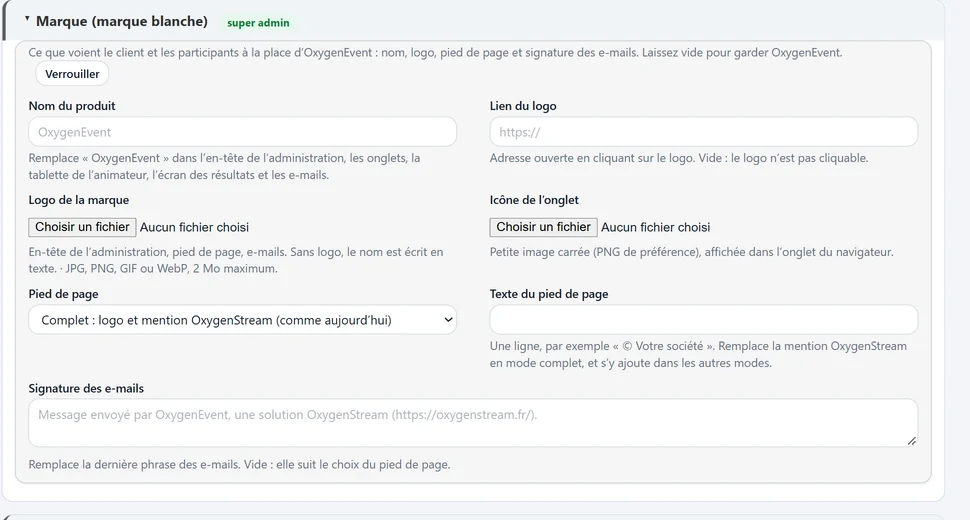
  • Product name: it replaces “OxygenEvent” in the admin header, browser tabs, the host's tablet, the results screen and e-mails.
  • Your brand logo, with an optional link to your website.
  • Browser tab icon, in your image.
  • Footer of your choice, with your own text, for example “© Your company”.
  • E-mail signature: it replaces the last sentence of the e-mails sent to attendees.
  • A Super Admin setting, protected by an access code: your client cannot change it.
Super admin: white-label settings (product name, logos, footer, e-mail signature)
  1. White label
  2. Brand logo
  3. Footer of your choice
  4. E-mail signature

White label: name, logos, footer and e-mail signature in your image.

You · Super Admin

Each event built à la carte, in a few clicks

  • Modules enabled à la carte, with a “Client access” switch to choose the ones your client manages alone.
  • One access mode at a time: simple form, registration, invitations or direct access. Data is kept if you switch.
  • A “Ready for the event?” checklist: name, date, logo, video player, GDPR contact, access mode, client password, PIN code. You see what is left to do.
  • The event identity: name, logo, date, countdown and colours of the public pages, in your client's colours.
  • Technical settings: default language, video player address, domain name.
  • Two views, Super Admin and Admin: switch in one click to see exactly what your client sees.
Super admin, Modules tab: attendee access mode, active modules and client access
  1. Access mode: one at a time
  2. Client access: they manage it
  3. Speakers & chapters
  4. In-room voting

Super Admin: the Modules tab, with the access mode, the modules and the client's rights.
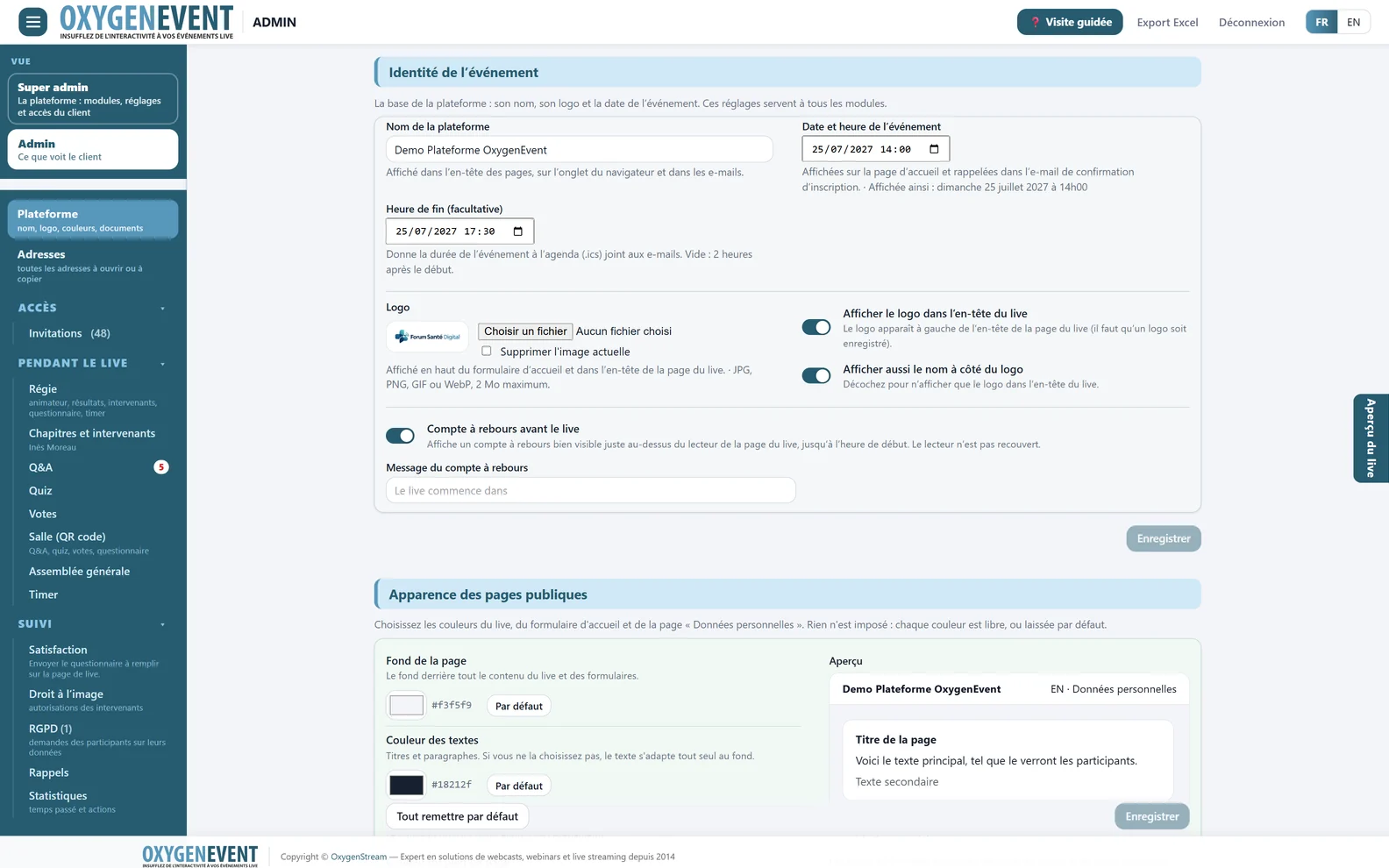
Platform tab: name, logo, event date, countdown
  1. Event name, logo and date
  2. Logo in the live header
  3. Countdown before the live
  4. Public page colours

The event identity: name, logo, date, countdown and colours.

Your client · Admin

Your client only sees what you open to them

They log into their own admin area with their own password and set up the modules you have entrusted to them.
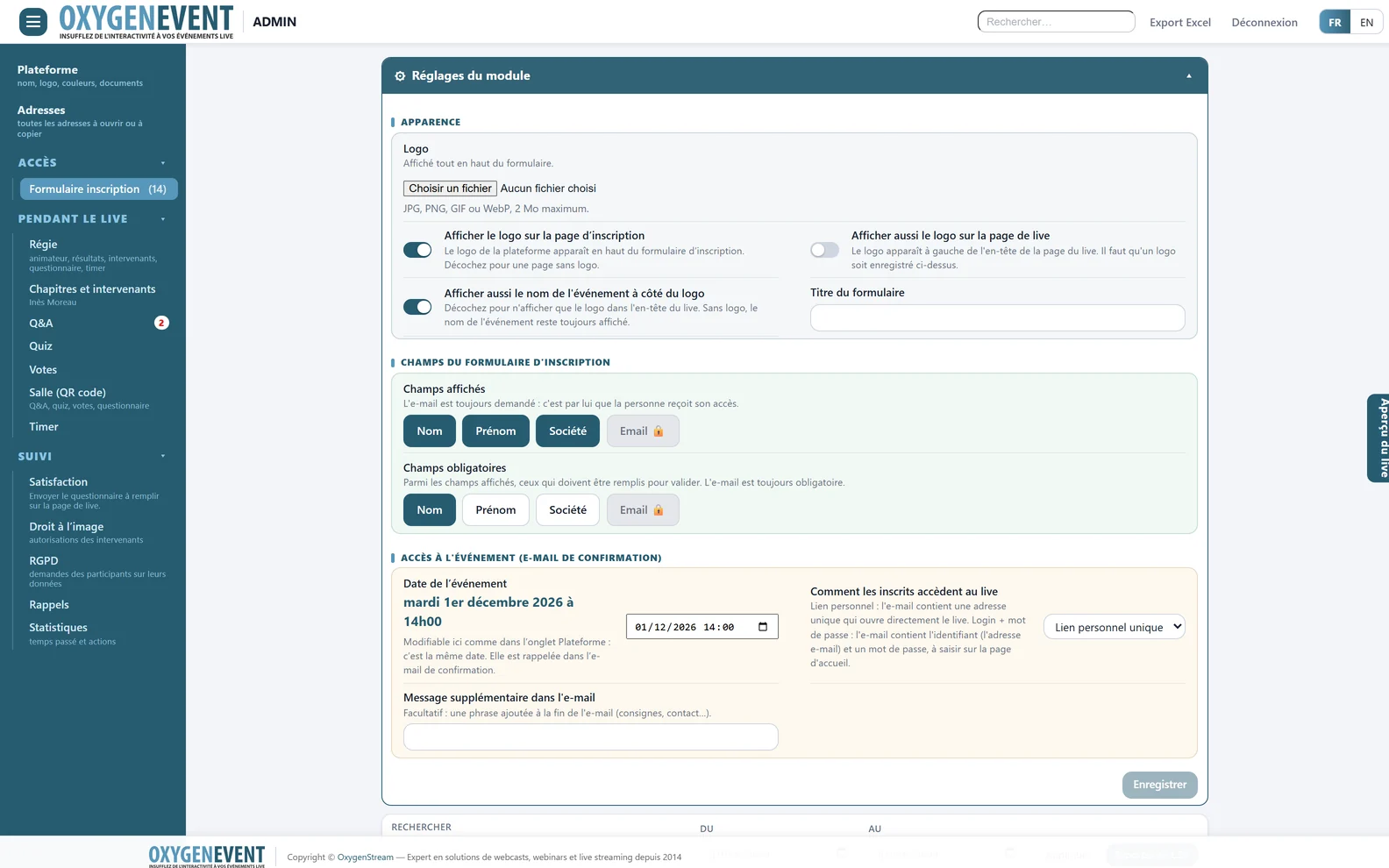
  • Only their modules: the menu only shows what you opened with the “Client access” switch.
  • Their settings, their way: form fields, personal link or password, documents to download.
  • Their questions: they approve, hide, answer or delete, while your team takes care of the broadcast.
  • Their figures: registrations, connections, votes and feedback, with Excel exports.
  • In French and English, admin area included.
Admin view: the menu shows only the client modules, with the Registration module settings
  1. Module settings, in their hands
  2. Only the client's modules
  3. Form fields to choose
  4. Personal link or password

Admin: what your client sees, only their modules and their settings.

Question moderation: filters, online or room origin, approve, hide, answer, delete
  1. Collapsed settings
  2. Filters: status, host
  3. Origin: online or room
  4. Question asked from the room
  5. Approve, hide, answer, delete

Question moderation: filters, online or in-room origin, one-click answers.

Their attendees · the live page

What your client's attendees see

A single page, in the event's colours and under your brand, on computer, tablet or phone, with nothing to install.

  • Your embedded video player: any streaming platform that offers an embeddable player, with a full-screen button.
  • A countdown before the start, which folds away at zero to make room for the player.
  • Questions, polls, quizzes: the question pops up over the video and attendees answer in one tap.
  • Speakers on screen: the speaker on stage and the speakers of the current chapter.
  • Documents to download, with download tracking.
  • Satisfaction survey offered at the end of the live show.
OxygenEvent live page with a poll question displayed over the video
  1. Countdown before the live
  2. Your video player, embedded
  3. Poll question over the video
  4. Downloadable documents, tracked
  5. The speaker on stage, with a photo
  6. Speakers of the current chapter

The live page: countdown, video, poll over the video, speakers and documents.

In the control room

Designed by a service provider, for your trade

OxygenStage was born in a control room: OxygenStream's, which has been producing live shows since 2014. During the live show, everything your team needs fits on a few pages, opened in a web browser.
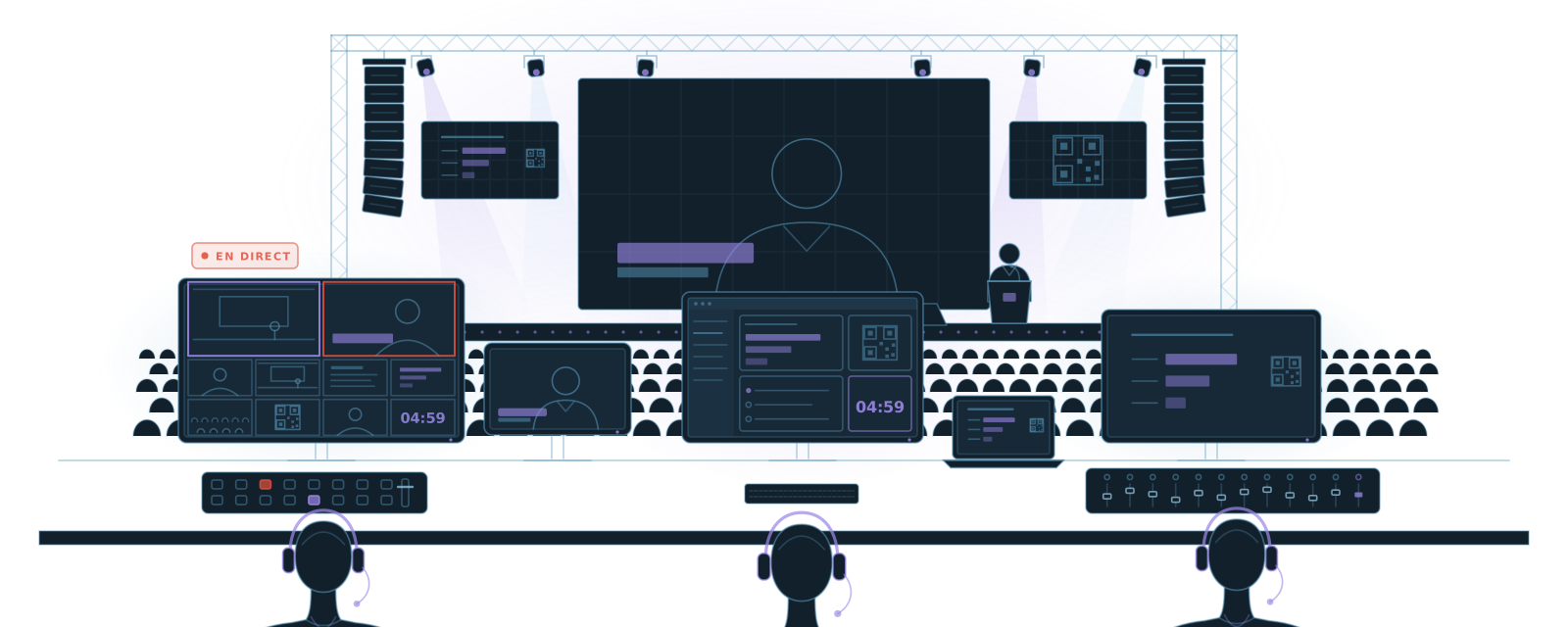
Illustration: the venue and stage seen from the control room

The control room

A single control page to run everything at a glance

One page brings together everything your team needs during the live show, without switching from one module to another.
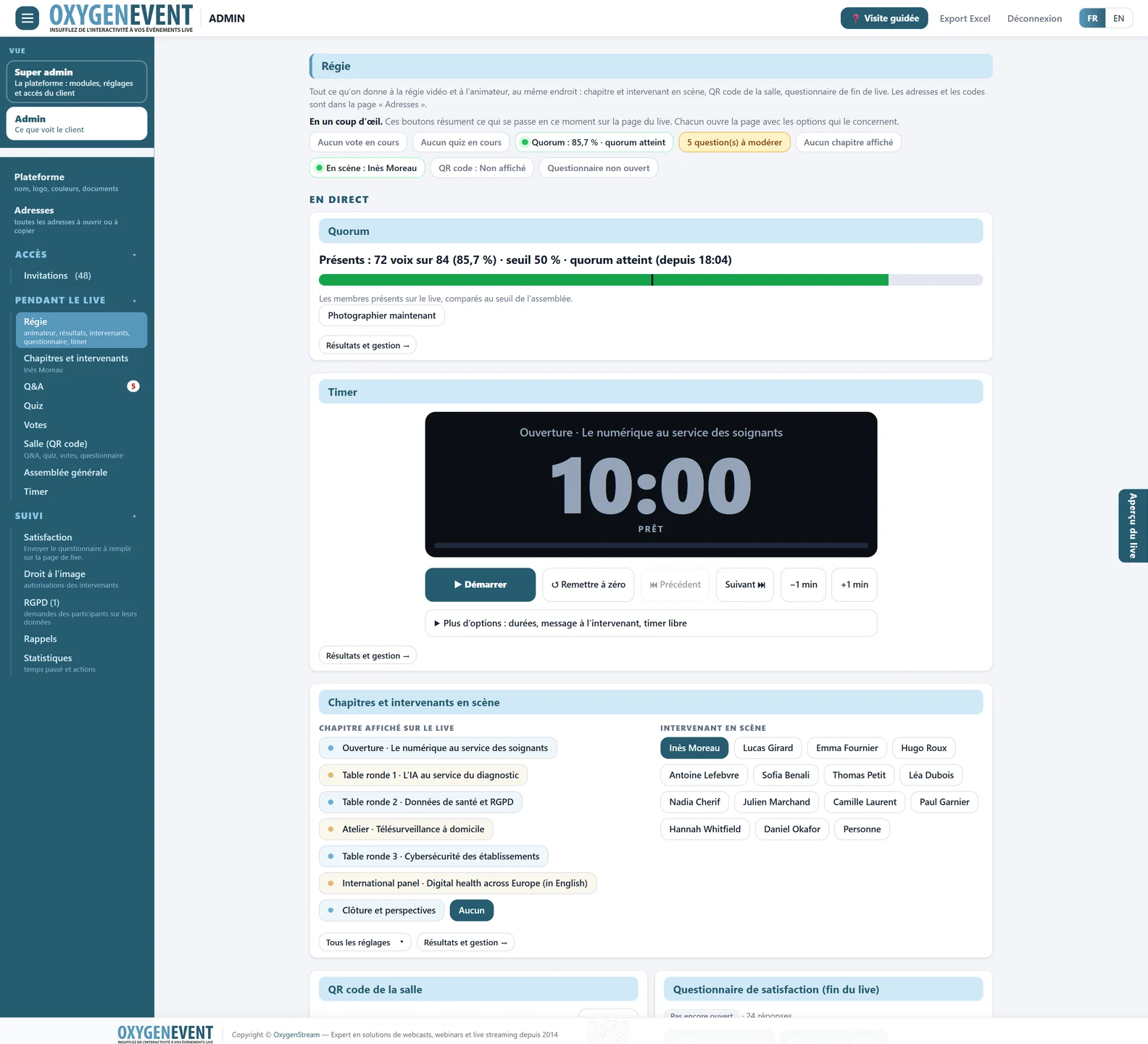
  • Live status at a glance: poll or quiz in progress, questions to moderate, quorum, chapter on air, speaker on stage, QR code, survey.
  • Chapter and speaker on stage: pick the chapter on air and the speaker in one click.
  • Quorum and Timer: the meeting gauge and the speaker's countdown are run from the same page.
  • Room QR code and end-of-show survey: opened, shown or hidden with one button.
  • Addresses and codes to share: the “Addresses” page gathers the attendee address, the host page, the broadcast pages and the control room's 4-digit code. One click on “Copy” is all it takes.
Control room: live status, chapter and speaker on stage, room QR code, satisfaction survey and addresses to pass on
  1. Live status at a glance
  2. Live quorum (general meeting)
  3. Timer: start, pause, durations
  4. Chapter shown and speaker on stage
  5. Room QR code
  6. End-of-live survey

The control room: live status, speaker on stage, room QR code and survey.
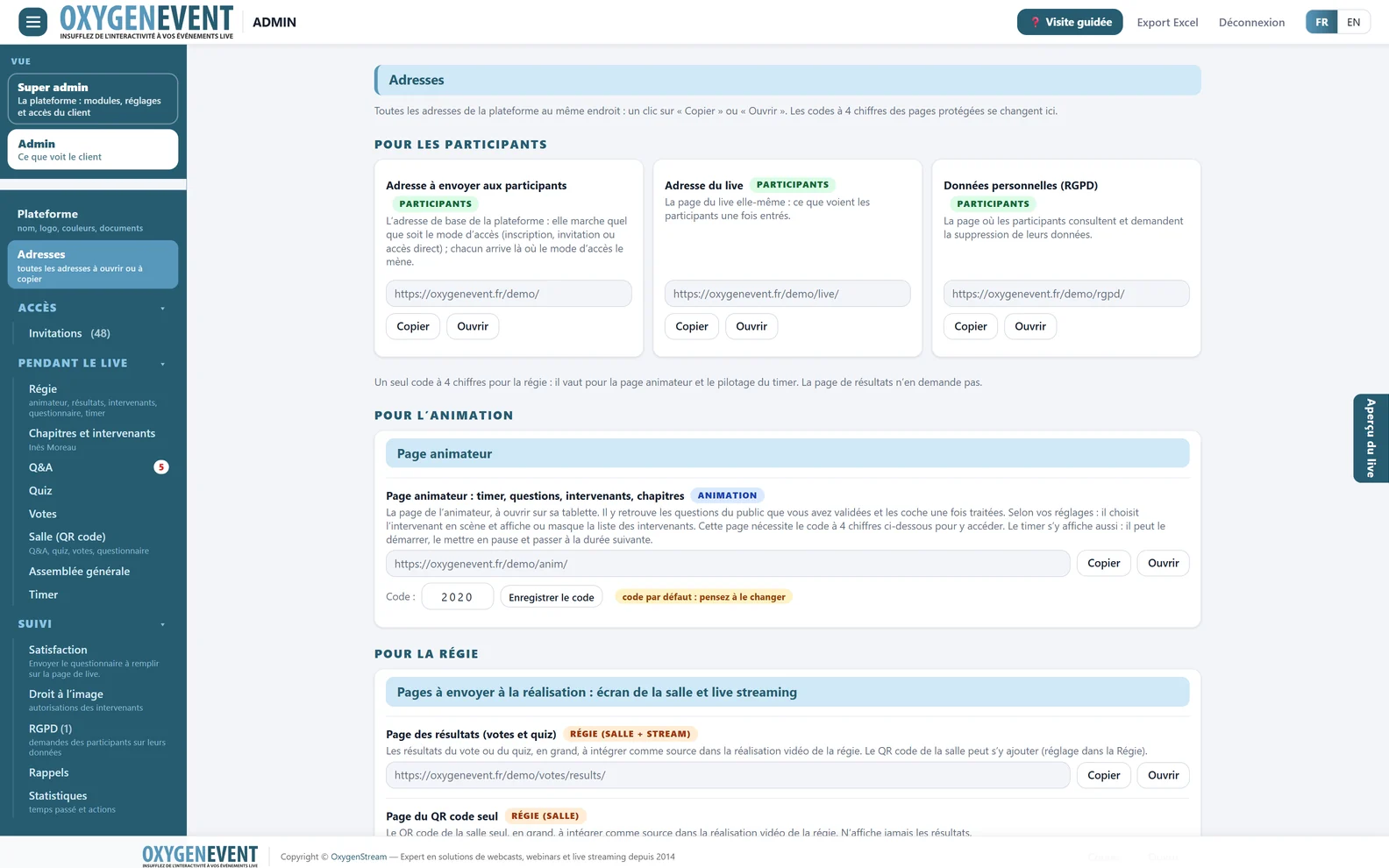
Addresses page: attendee, host and control-room addresses, with the 4-digit code
  1. Addresses to send to attendees
  2. Host page for the tablet
  3. One 4-digit code for the control room
  4. Addresses for the video production

The “Addresses” page: all the addresses and codes to share, in one place.

Pages for your broadcast

Pages ready for your vision mixer software

Each page has its own address, to add as a browser source in your vision mixer software (1920 × 1080, updated live): poll results, quiz leaderboard, room QR code and Timer.
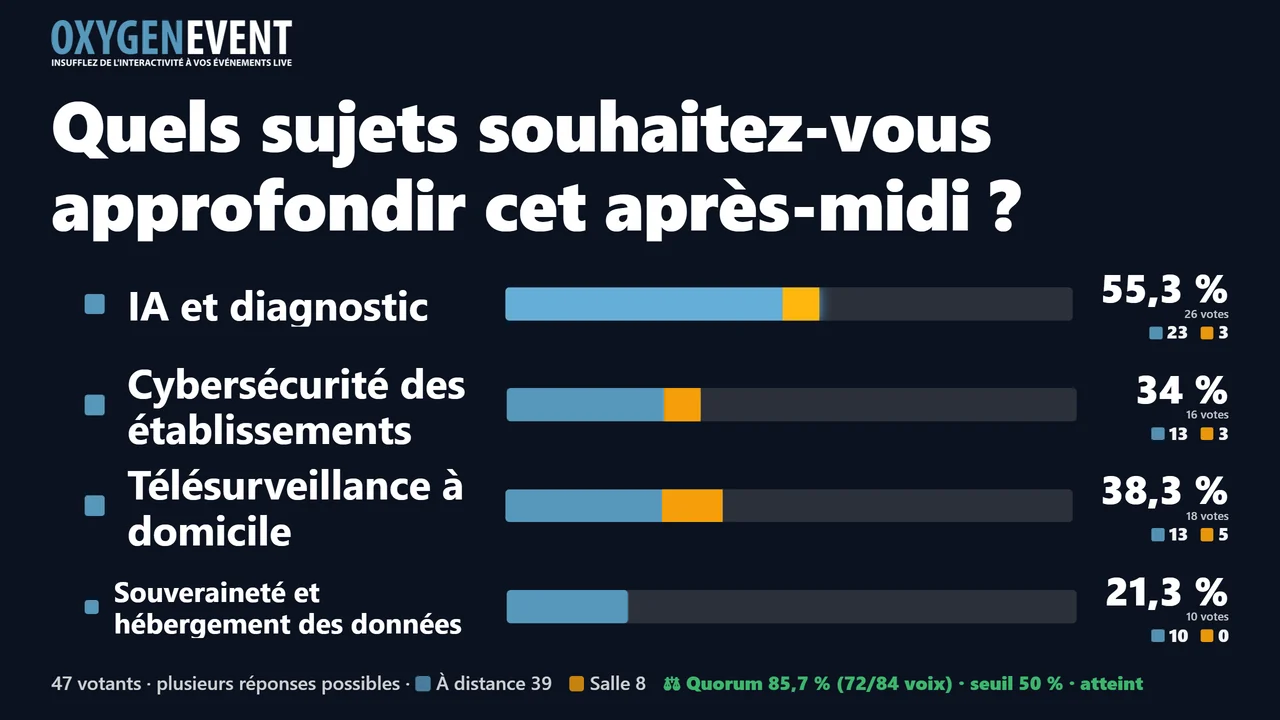
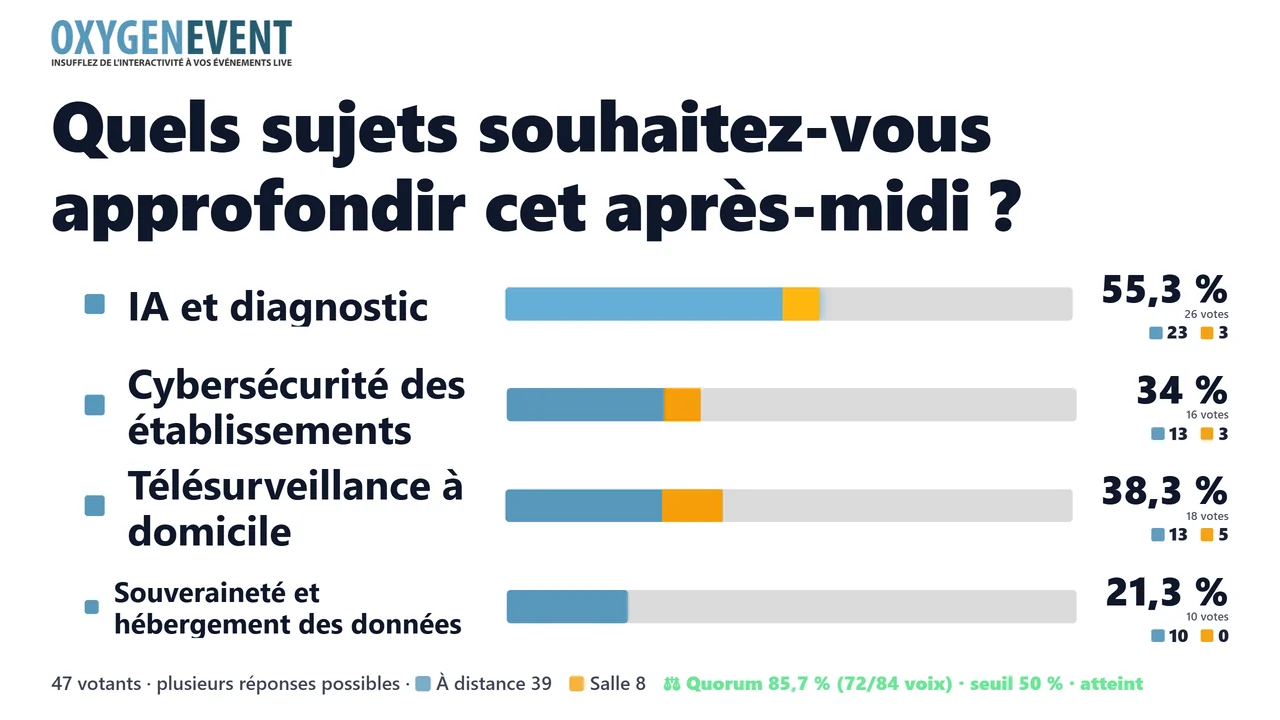
Poll results, in your client's brand colours

Poll results on a dark background

Dark background (default)

Poll results on a light background, custom bar colour

Light background, bars in their brand colour
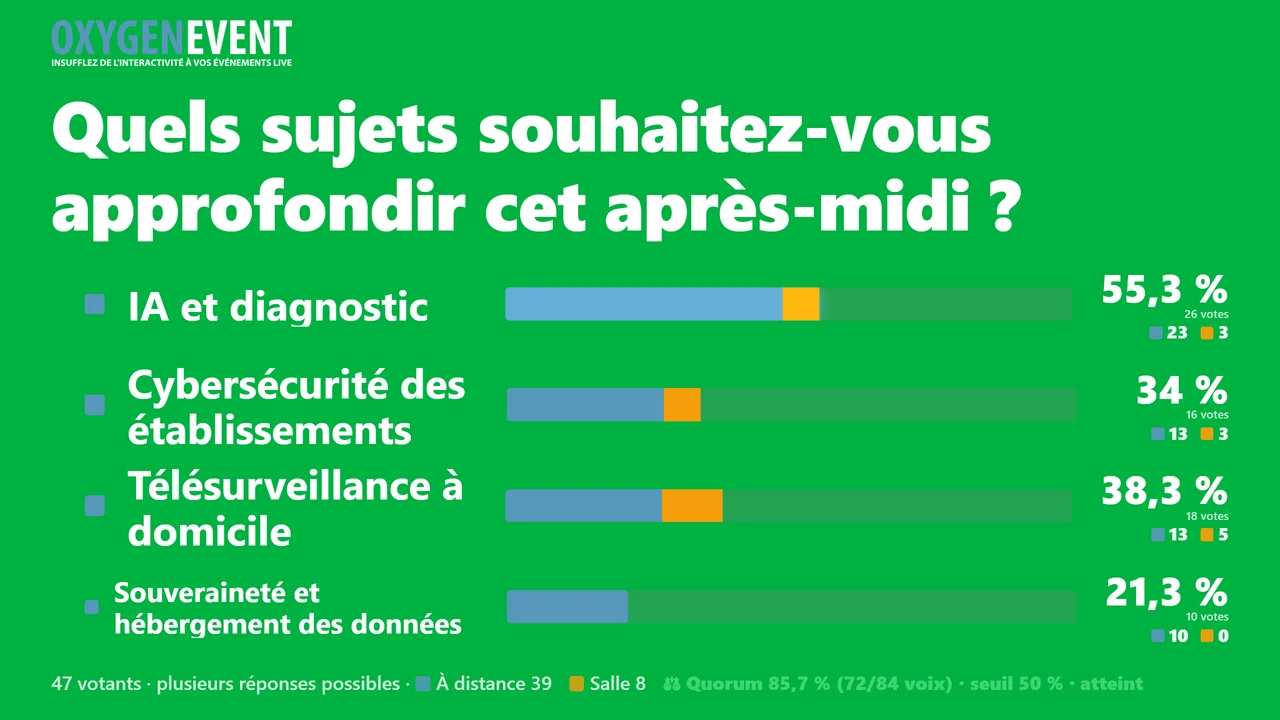
Poll results on a green background for keying

Green background for keying

And more, each with its own address

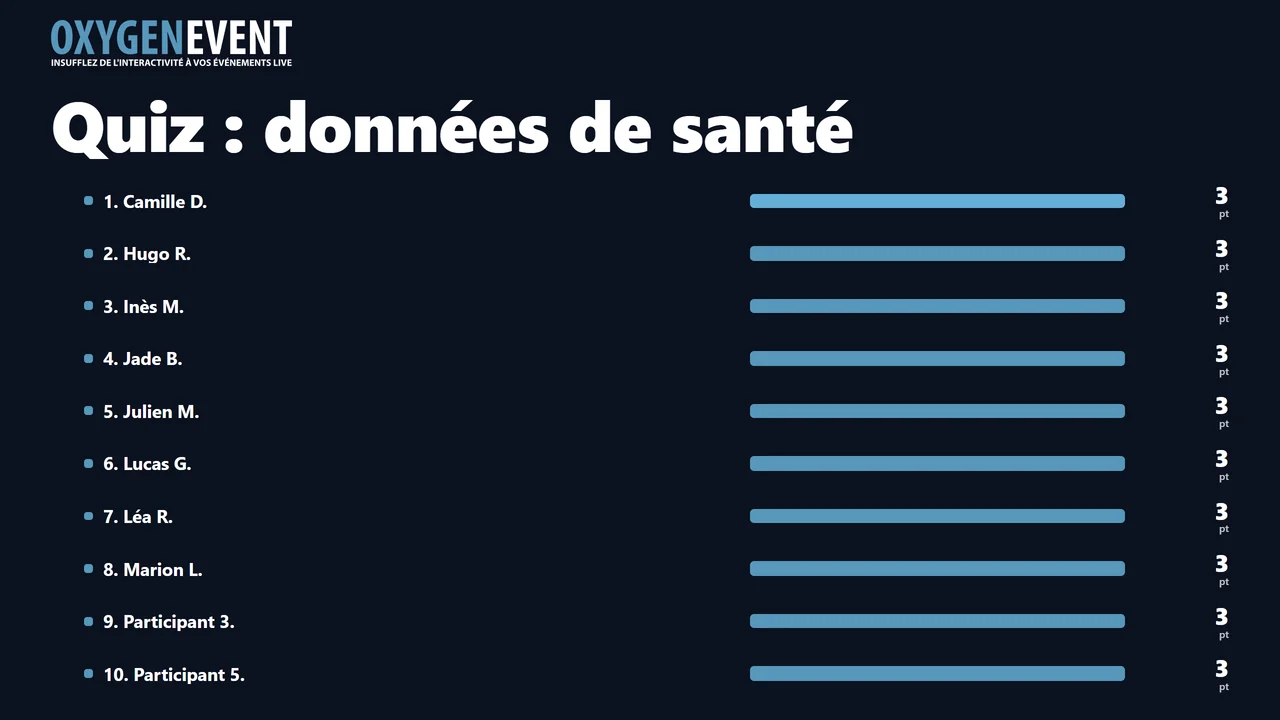
Quiz leaderboard page for the production

Quiz leaderboard: the best scores, ready to go on air
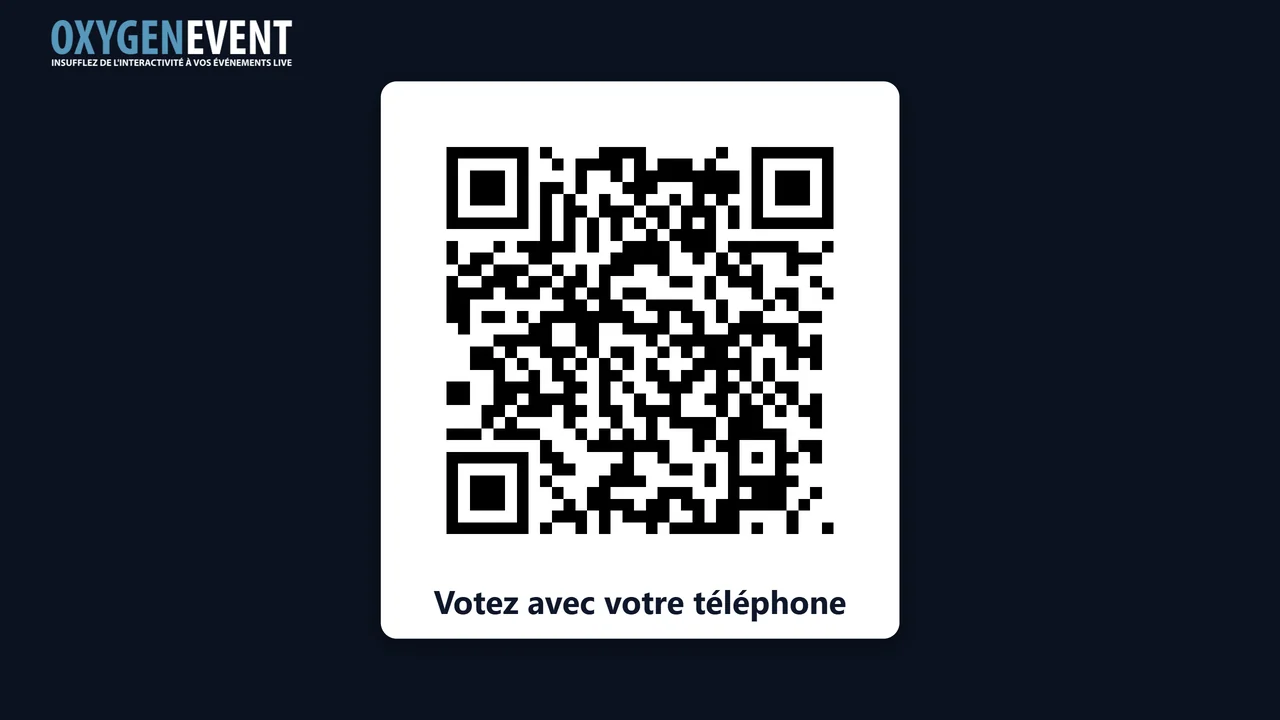
Room QR code on its own, full size

Room QR code, on its own and full size
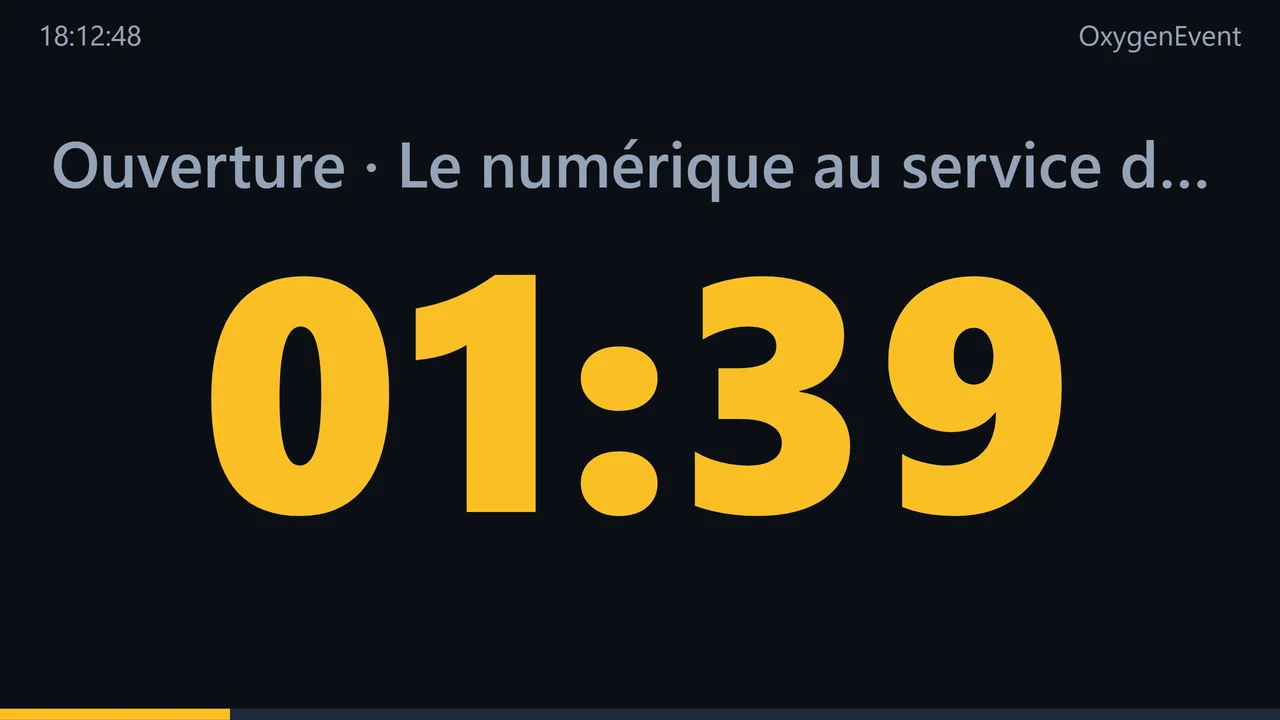
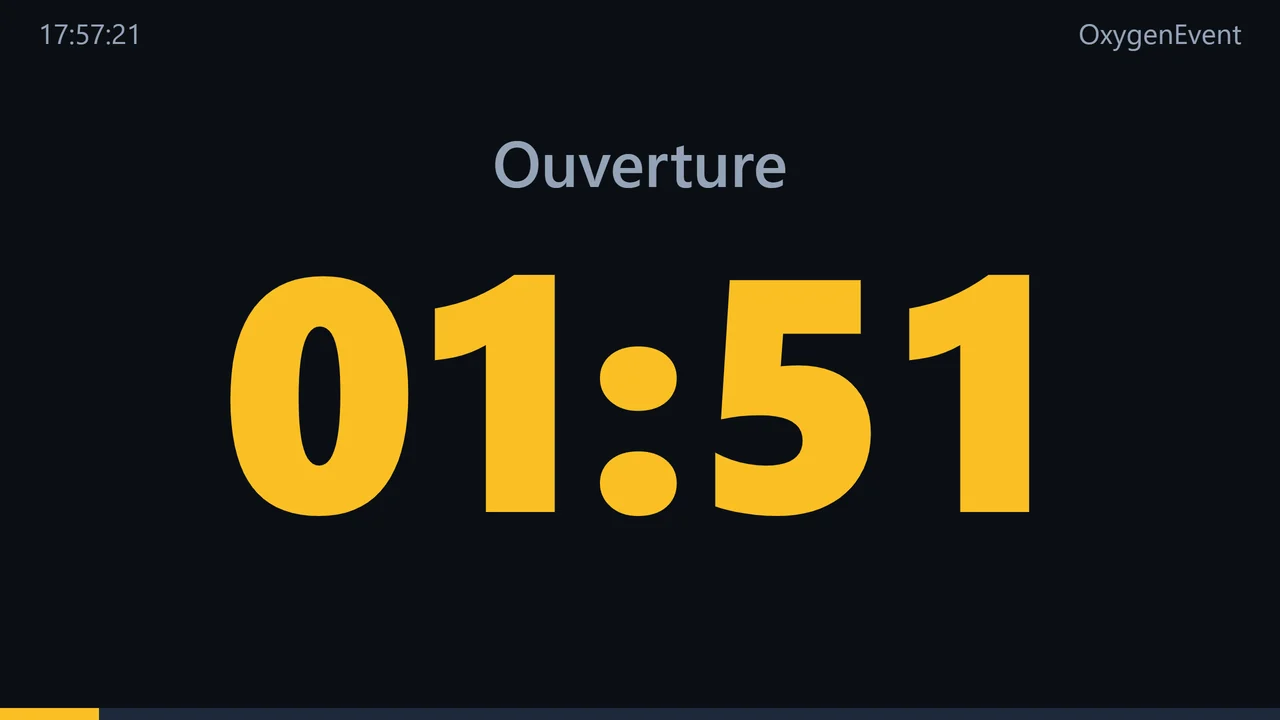
Timer screen in front of the speaker: countdown in orange

Timer: the speaker's countdown

  • One address per page: paste it as a browser source in your mixer
  • Green or transparent background: ready for keying
  • Live updates: nothing to refresh during the show
  • You choose what goes on air: the current question or a specific one

Timer · on stage, in the control room and on the host's tablet
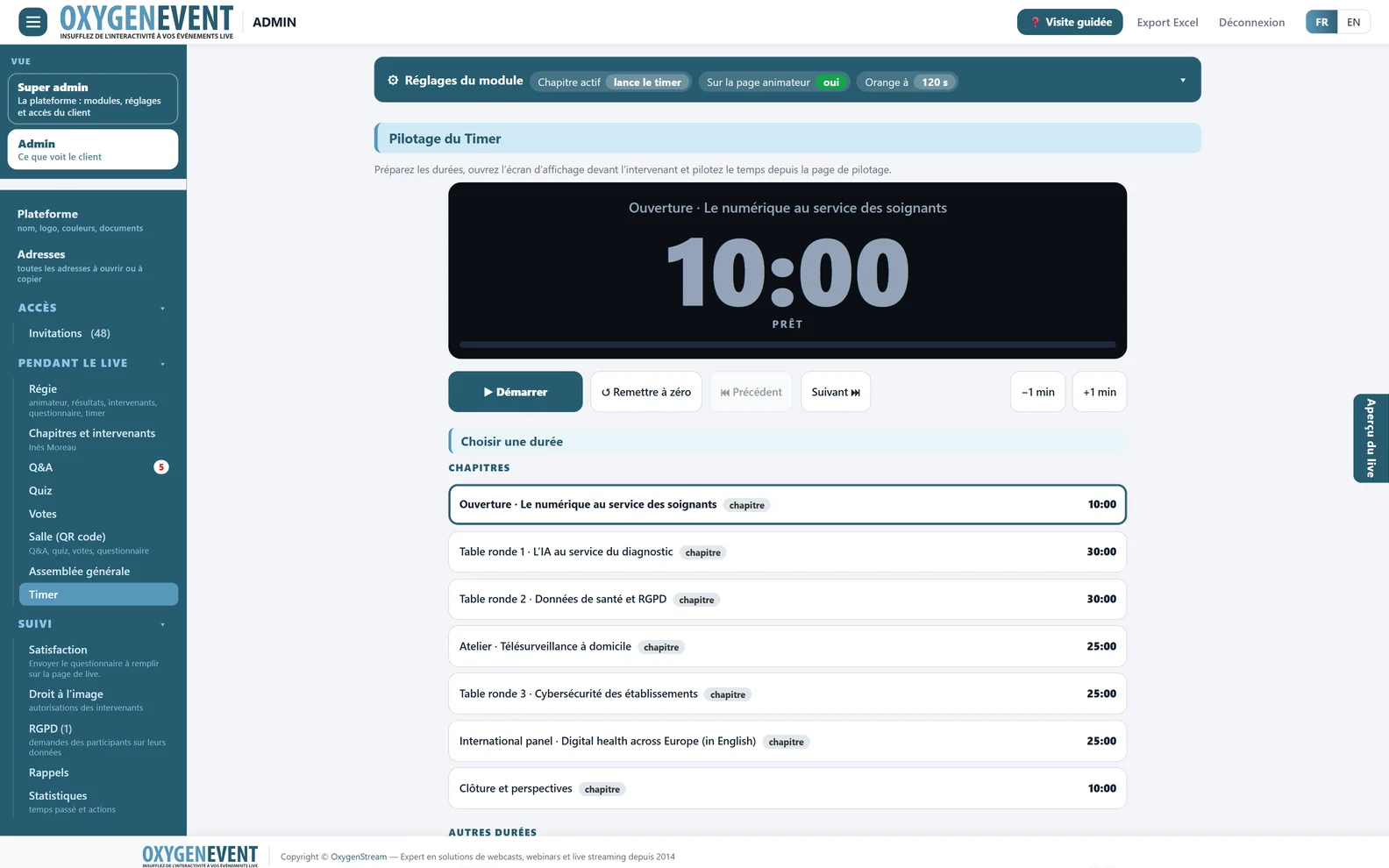
A countdown for the speaker, run from your control room

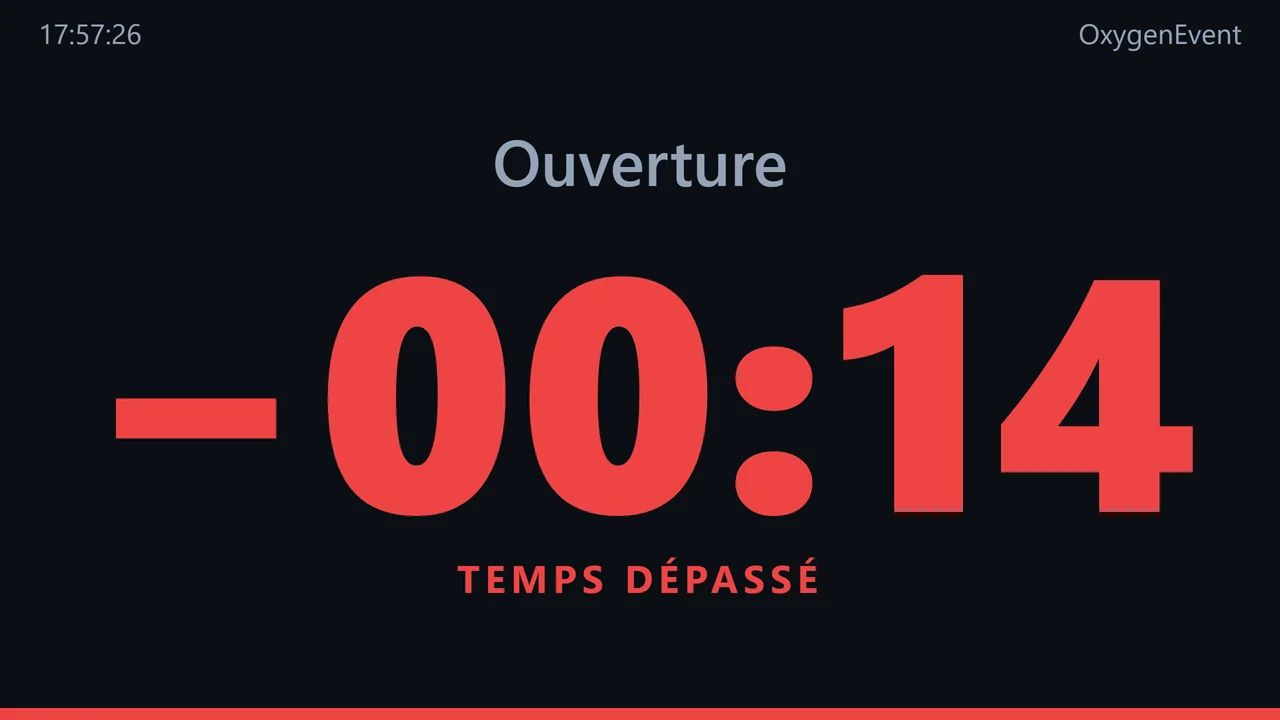
  • Readable from the stage: the screen turns orange, then flashing red, and shows when time is up.
  • Run from the control room: start, pause, reset, next duration, ± 1 minute, message to the speaker, free timer.
  • One duration per chapter: picking a chapter loads its duration, and vice versa.
  • On the host page, if you wish.
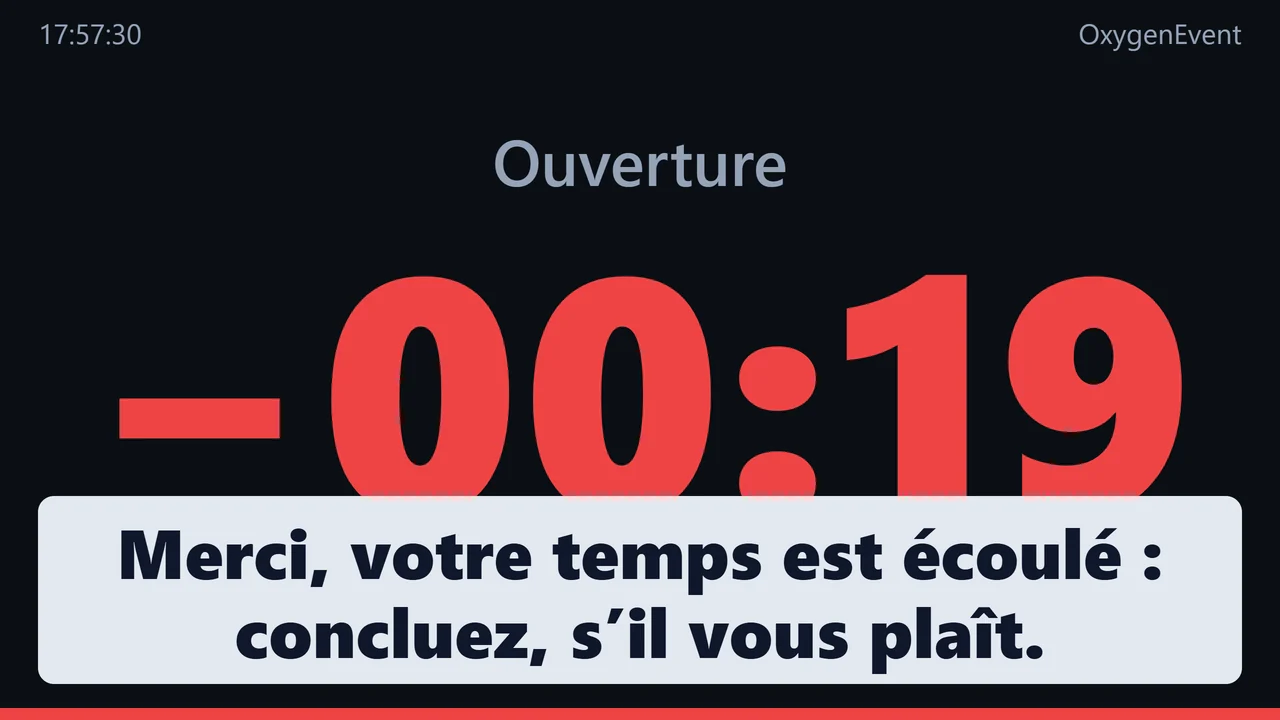
  • A large message, when needed: “Please wrap up”, “Thank you”. The control room shows it over the countdown, on the speaker's screen.
Timer control: countdown, command buttons and durations per chapter
  1. Collapsed settings
  2. Readable countdown
  3. Start, pause, ±1 min
  4. One duration per chapter
  5. Extra free durations

Running the Timer: start, pause, durations per chapter.
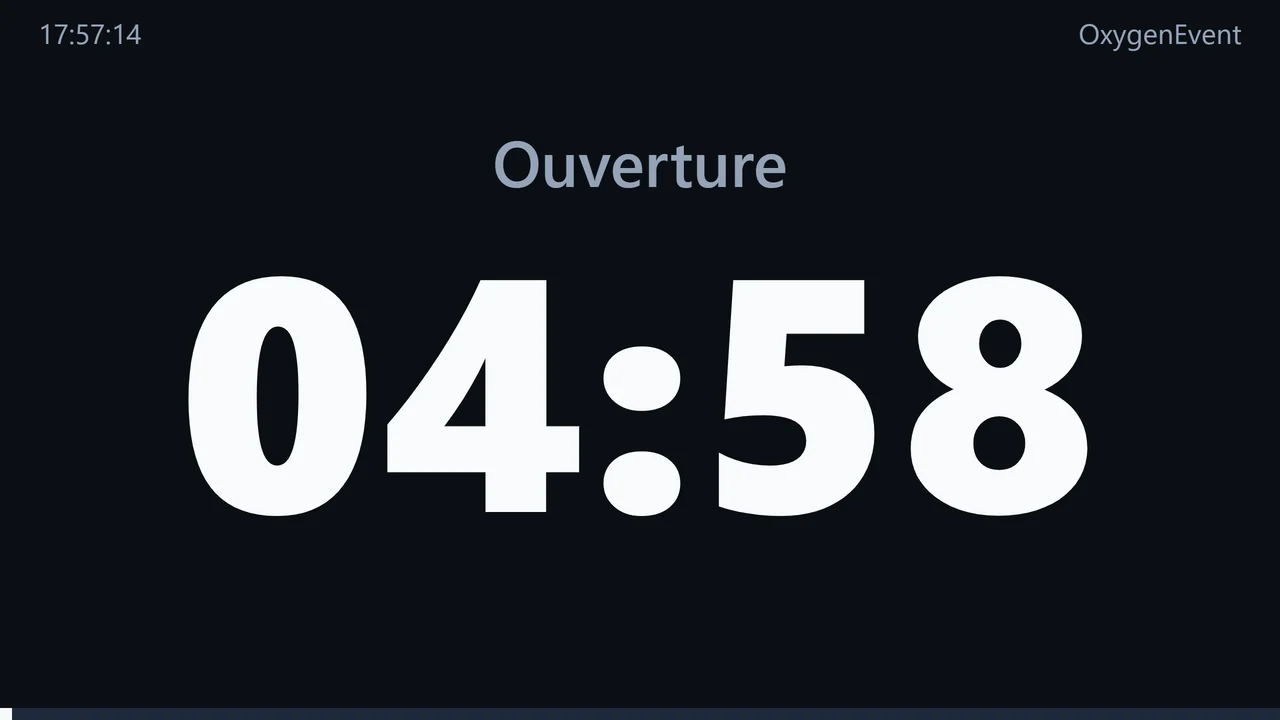
Timer screen in white: time is running normally
1White: time is running, the speaker sees how much is left.
Timer screen in orange: little time left
2Orange: little time left. You choose from how many seconds.
Timer screen in red: time is up, negative countdown
3Red: time is up. The screen flashes in the last seconds, then the countdown goes negative.
Timer screen with a message from the control room asking the speaker to wrap up
4Message from the control room: large text over the countdown (“Wrap up”, “Thank you”…).

The host · on their tablet

The host has their own page, with no access to the admin area

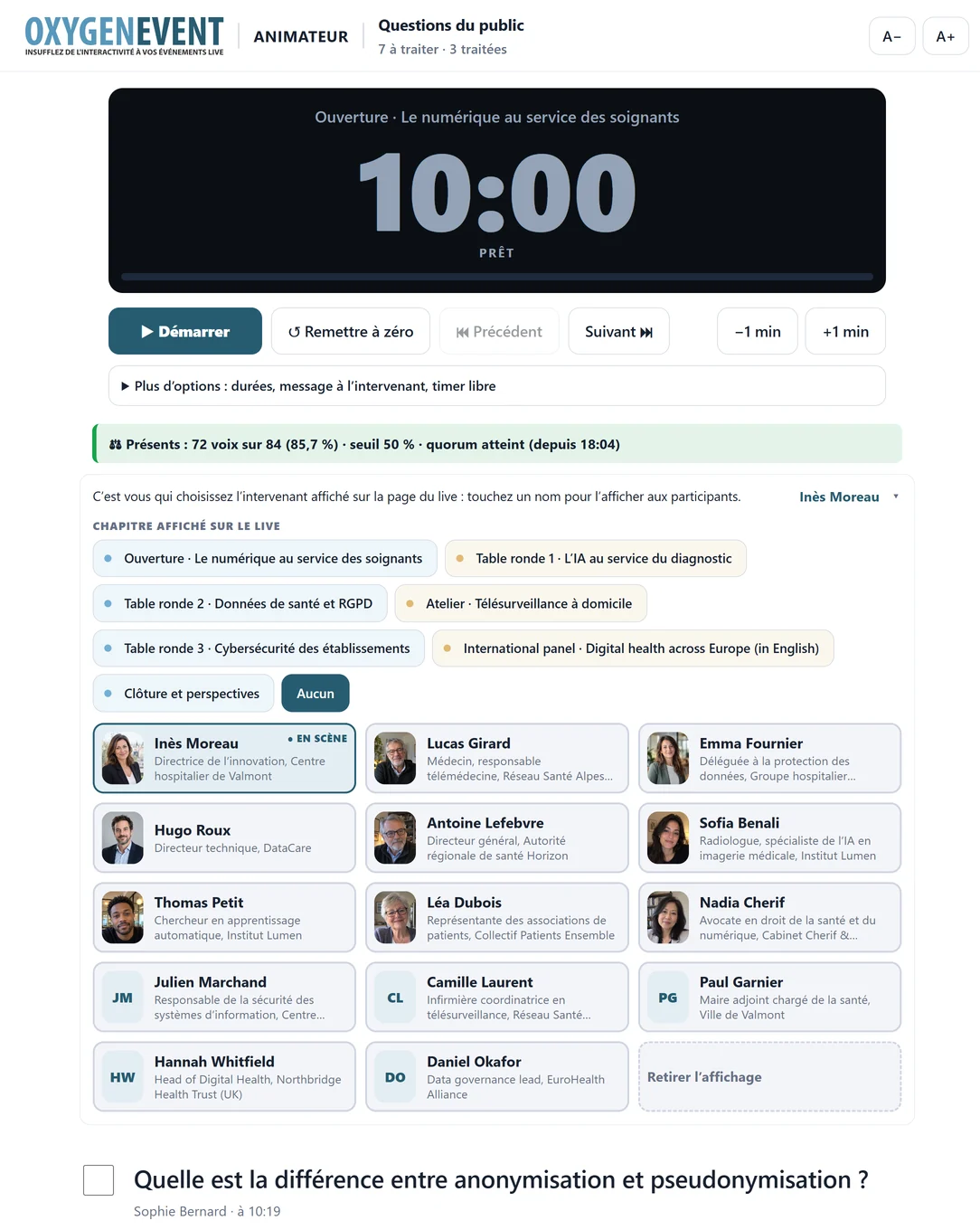
  • Short address and 4-digit PIN code, or a direct link with nothing to type.
  • Approved questions only. An anonymous question stays “Anonymous”.
  • Very large text, with A− / A+ buttons to suit the reading distance.
  • “Done” checkbox and automatic update of new questions.
  • Speaker on stage: they see the chapter on air and change the speaker shown on the live page with one tap, from the same tablet.
  • Timer and quorum on the tablet, if you show them there.
Host page: speaker on stage selector and audience questions in large format
  1. A− / A+: text size
  2. Timer: start, pause, ±1 min
  3. Live quorum, on the tablet
  4. Chapter being broadcast
  5. Show or hide the list
  6. Speaker on stage in one tap, with a photo
  7. "Done" tick: question tracking
  8. Approved questions, in large type

The host page: very large questions, Timer, speaker on stage.

The room · a single QR code

One QR code, and the whole room takes part

People in the room scan the code shown on your screens: no account, no app.
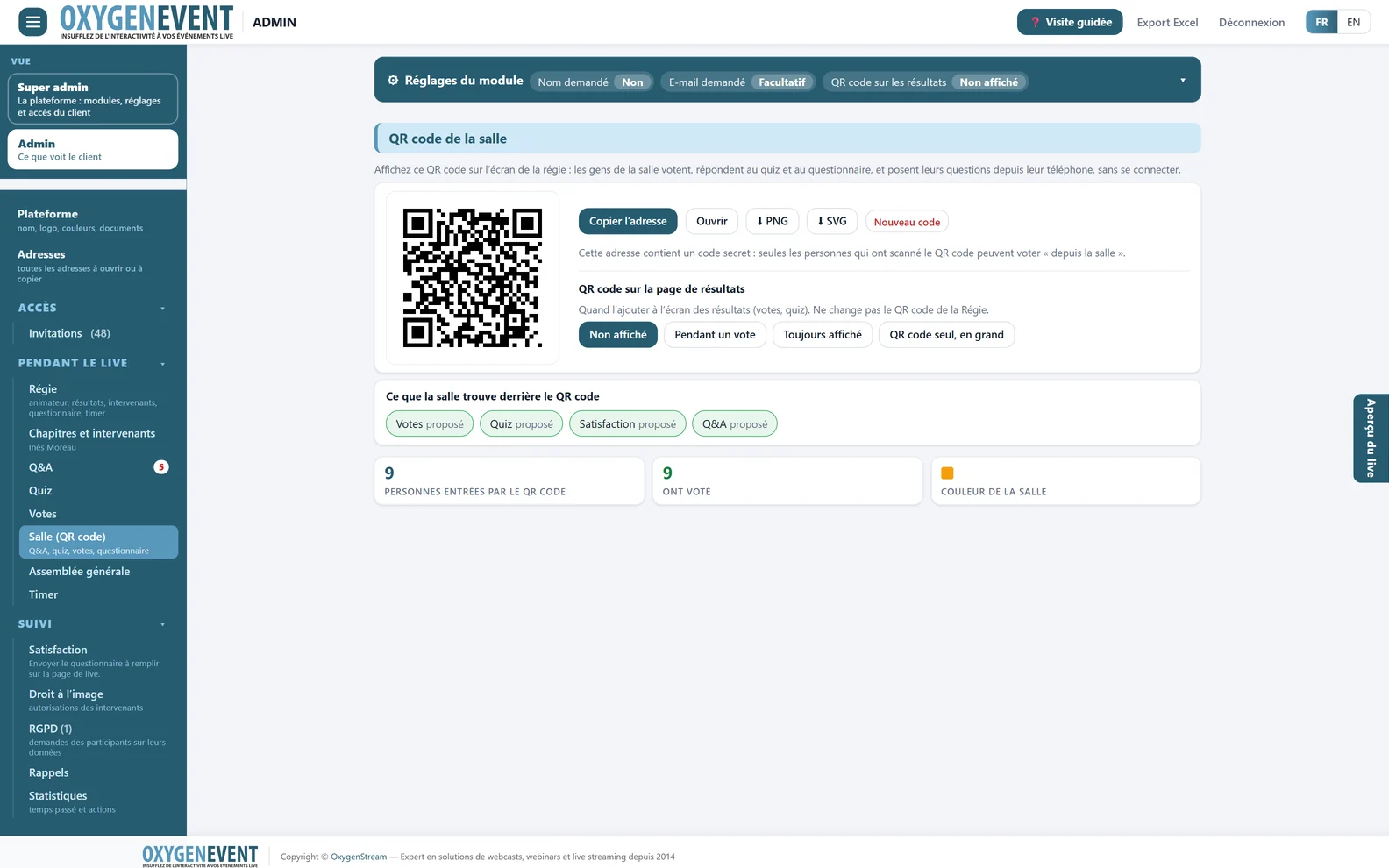
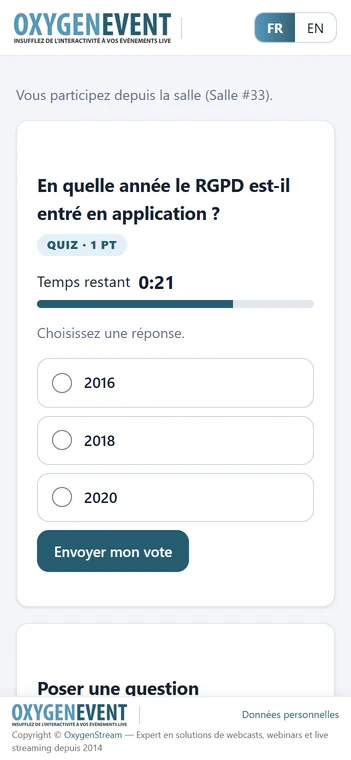
  • Votes, quizzes, survey and questions from their phone, on the same questions as the remote audience.
  • A separate count “Remote” and “Room” in the results.
  • Questions from the room: they arrive in the Q&A tagged “Room”, with an “Origin” filter.
  • Display as you wish: never, during a poll or all the time, in a corner or on the side of the control room screen, or the QR code alone, full size, as a second video source.
  • A secret code in the address of the QR code, renewable in one click.
Room (QR code): QR code, what the room can do and display on the control-room screen
  1. One QR code for the room
  2. Secret-code address, PNG or SVG
  3. Shown on the control-room screen
  4. Votes, quiz, survey and Q&A offered
  5. QR code entries and votes

Room (QR code): the code, what the room can do, the display in the control room.
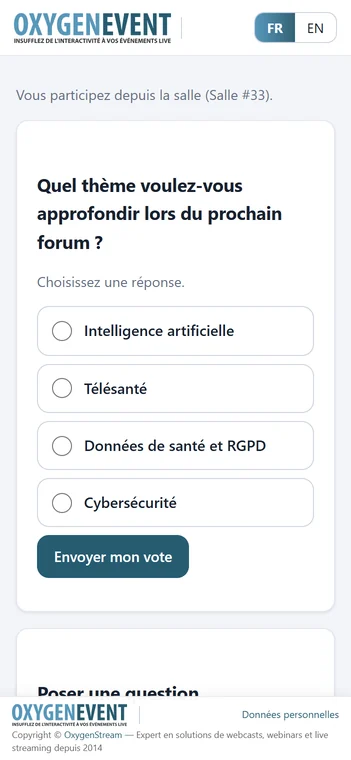
Room page on a phone: a poll in progress and a question being typed
Room page on a phone: a quiz question with its timer

On phones in the room: votes, quizzes and questions.

What you deliver

Complete events, and proof to hand over

Your client does not only remember the live show: they remember what they can show afterwards. You hand them a report, exports, their speakers' signed releases and, for a general meeting, the documents of the session.

Statistics, satisfaction and exports
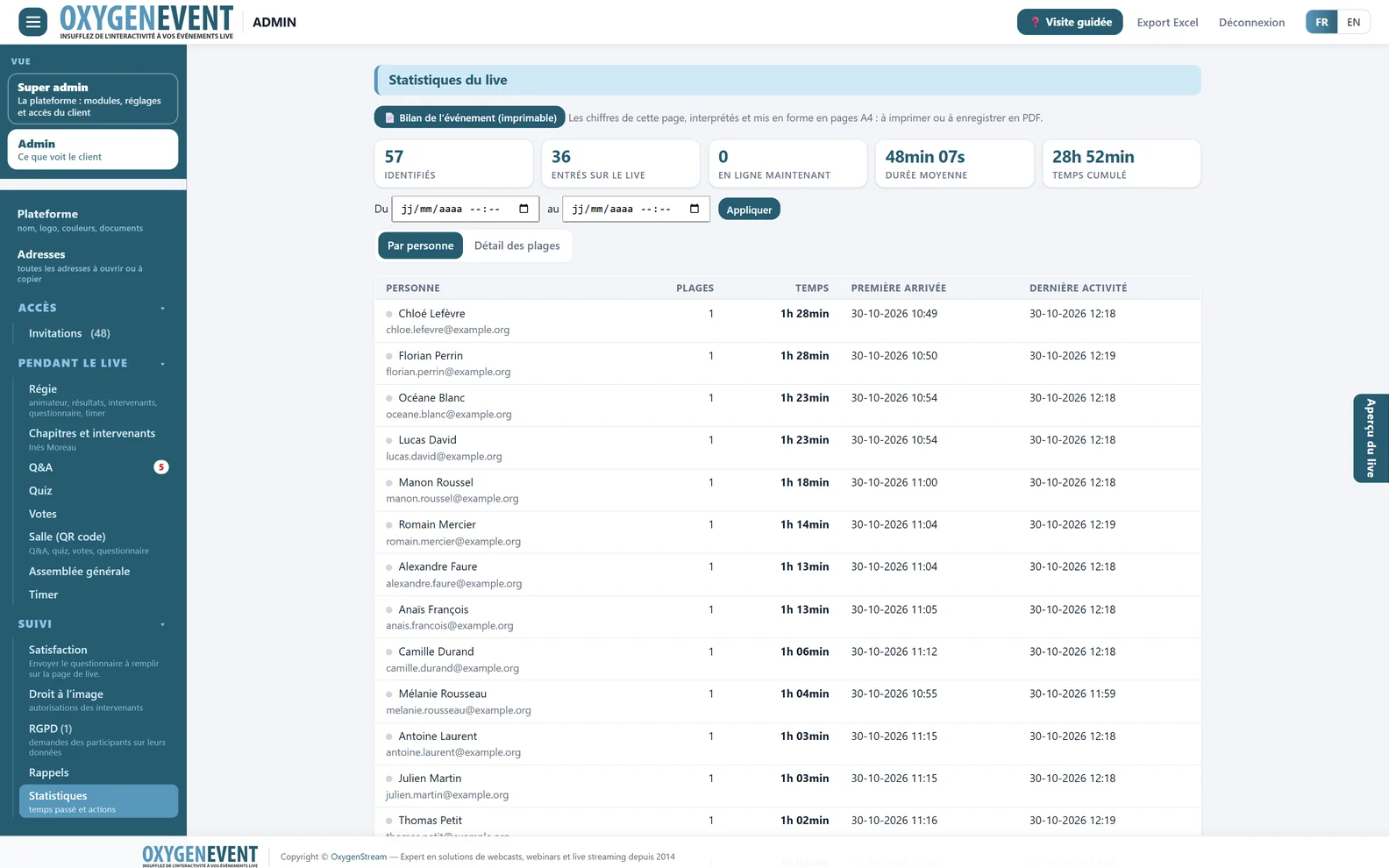
The event report, ready to present

  • A report in A4 pages, to print or save as PDF: key figures, attendance, participation, poll results, satisfaction.
  • Attendance in detail: identified, connected, average duration, connection periods, details per person, filter by period.
  • Satisfaction in figures: averages, distribution, recommendation score, response rate and free comments.
  • A global Excel export: one sheet per module, filterable by period.
Audience statistics dashboard
  1. Event report: A4 pages to print
  2. Identified, online, average duration
  3. Period filter
  4. Per person or connection detail
  5. First arrival, last activity

Statistics: identified, online, average duration, details per person.
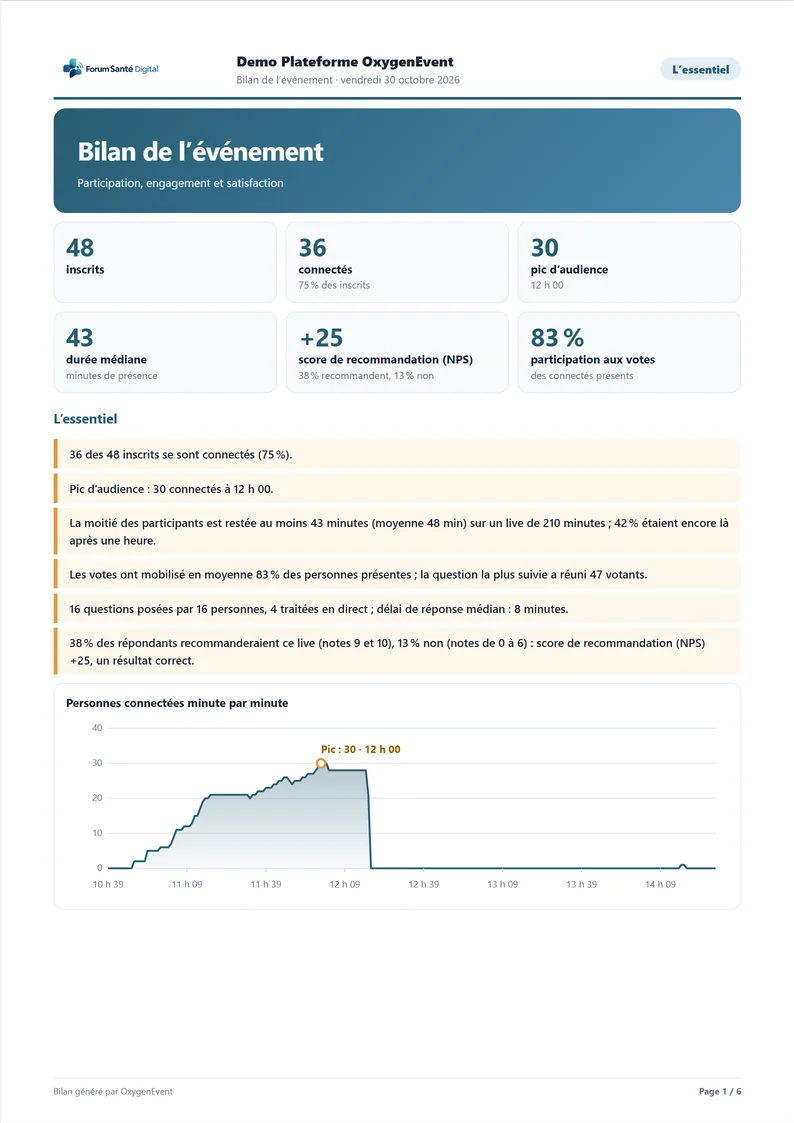
First page of the event report: key figures and attendance

The event report, to hand over to your client.

General meeting · a service in its own right

You film the meeting, the platform keeps the record

  • Live quorum, remote, in the room, by proxy and by postal vote, captured at each opening of a vote.
  • Resolutions counted in voting rights, with the majority calculated when the vote closes.
  • Members identified in the room, proxies and postal voting.
  • Attendance sheet and draft minutes in PDF, generated at the end of the meeting.

The applicable rules depend on your client's organisation: they have the set-up validated by their advisor.
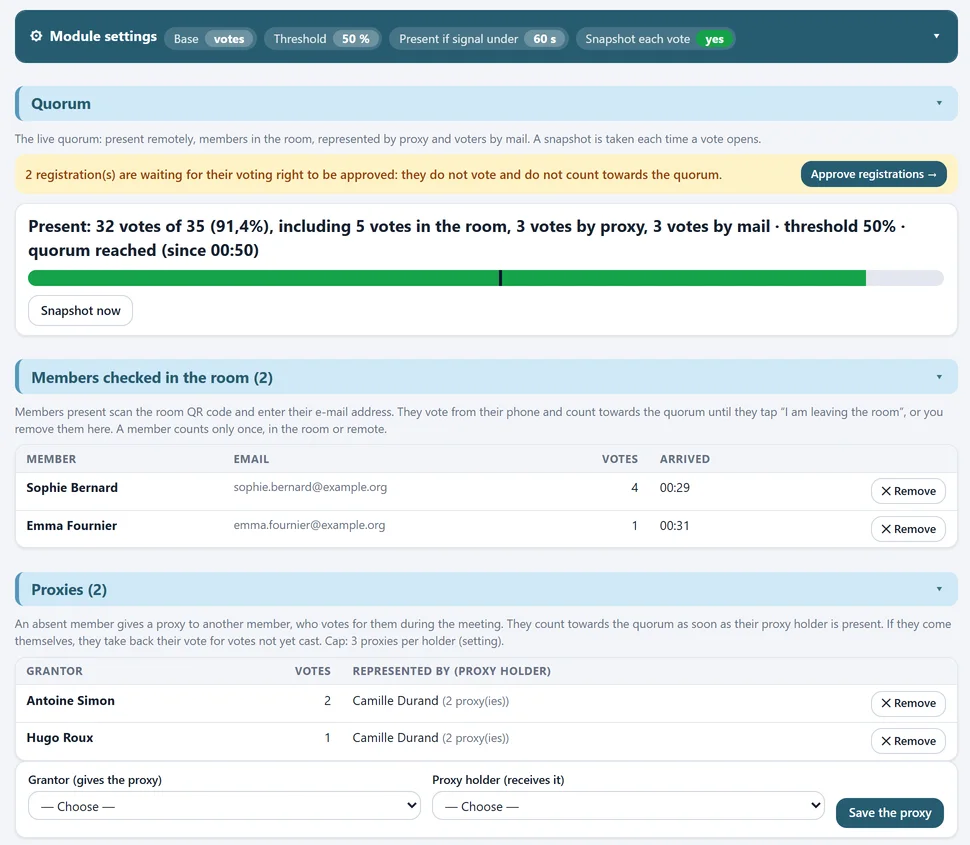
General meeting module: settings, live quorum, members checked in the room and proxies
  1. Base, threshold, snapshots
  2. Pending registrations
  3. Quorum breakdown
  4. Gauge and threshold
  5. Members in the room
  6. Remove a member
  7. Proxies

The General meeting module: quorum, members in the room, proxies.
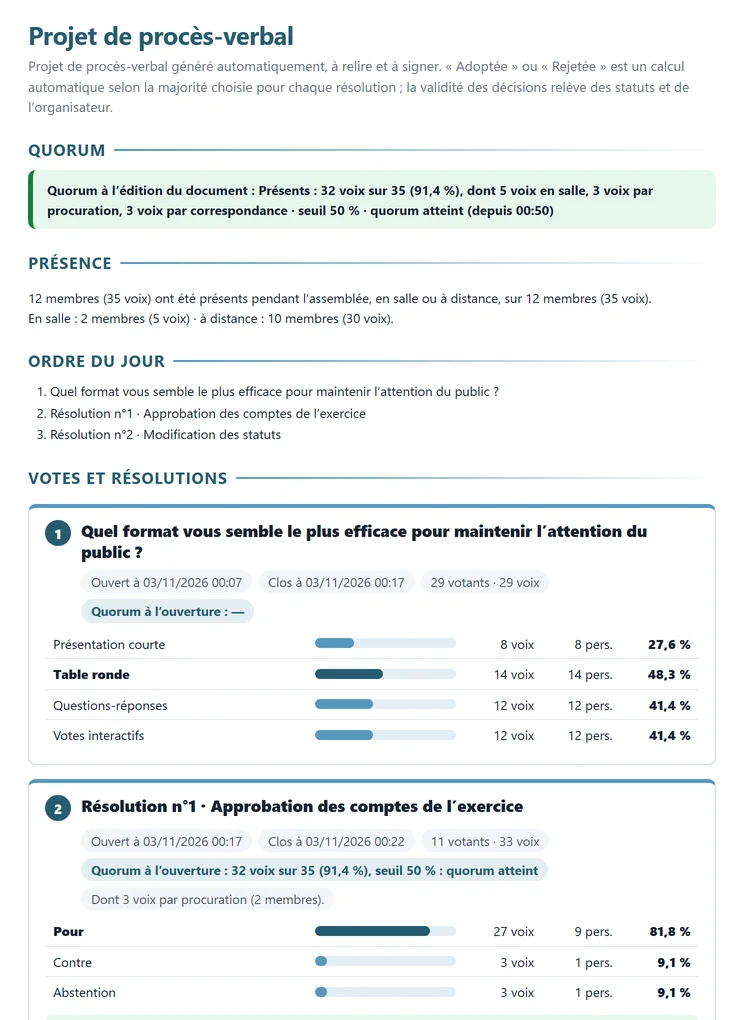
Draft minutes of a general meeting in PDF

The draft minutes, generated at the end of the meeting.

Image rights · before you film

Speakers' releases, signed online

You film speakers: each one signs their image and voice release from a personal link, before the event.
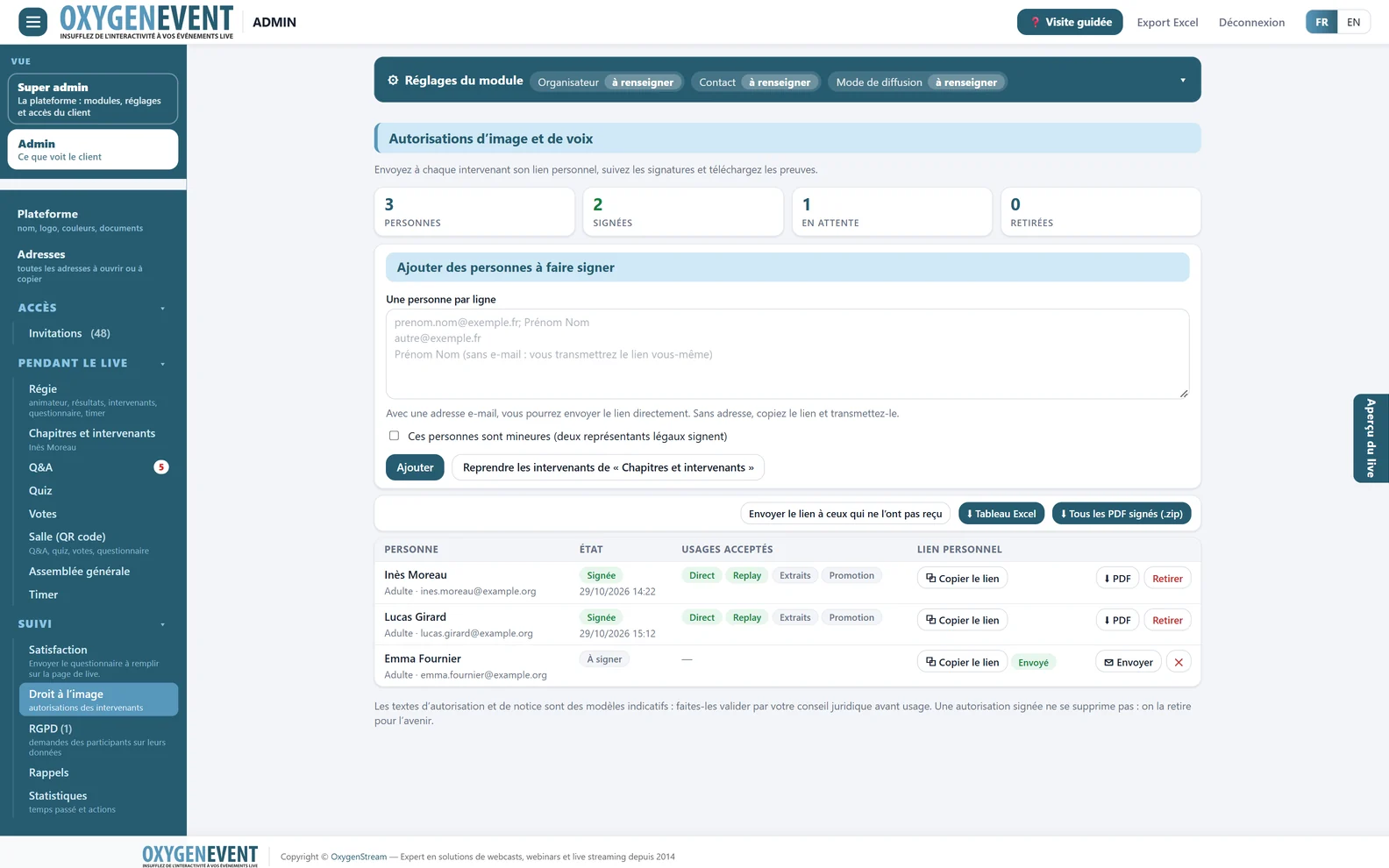
  • One personal link per speaker, use by use, with a dedicated path for minors.
  • Tracking at a glance: signed, pending, withdrawn.
  • The signed PDFs, an Excel sheet and a ZIP archive to hand over to your client.
Image rights module: list of speakers, signature status and signed PDFs
  1. Signed, pending, withdrawn
  2. One person per line
  3. One personal link per speaker
  4. Signed PDFs and Excel table

Image rights: signatures tracked, signed PDFs to download.

GDPR, security and compliance
Your clients' data, kept separate and under control

  • A separate space for each client: dedicated installation and database, deployed on a server sized for the expected number of visitors. No data shared between your events.
  • Explicit consent before any collection, and an automatically generated privacy notice.
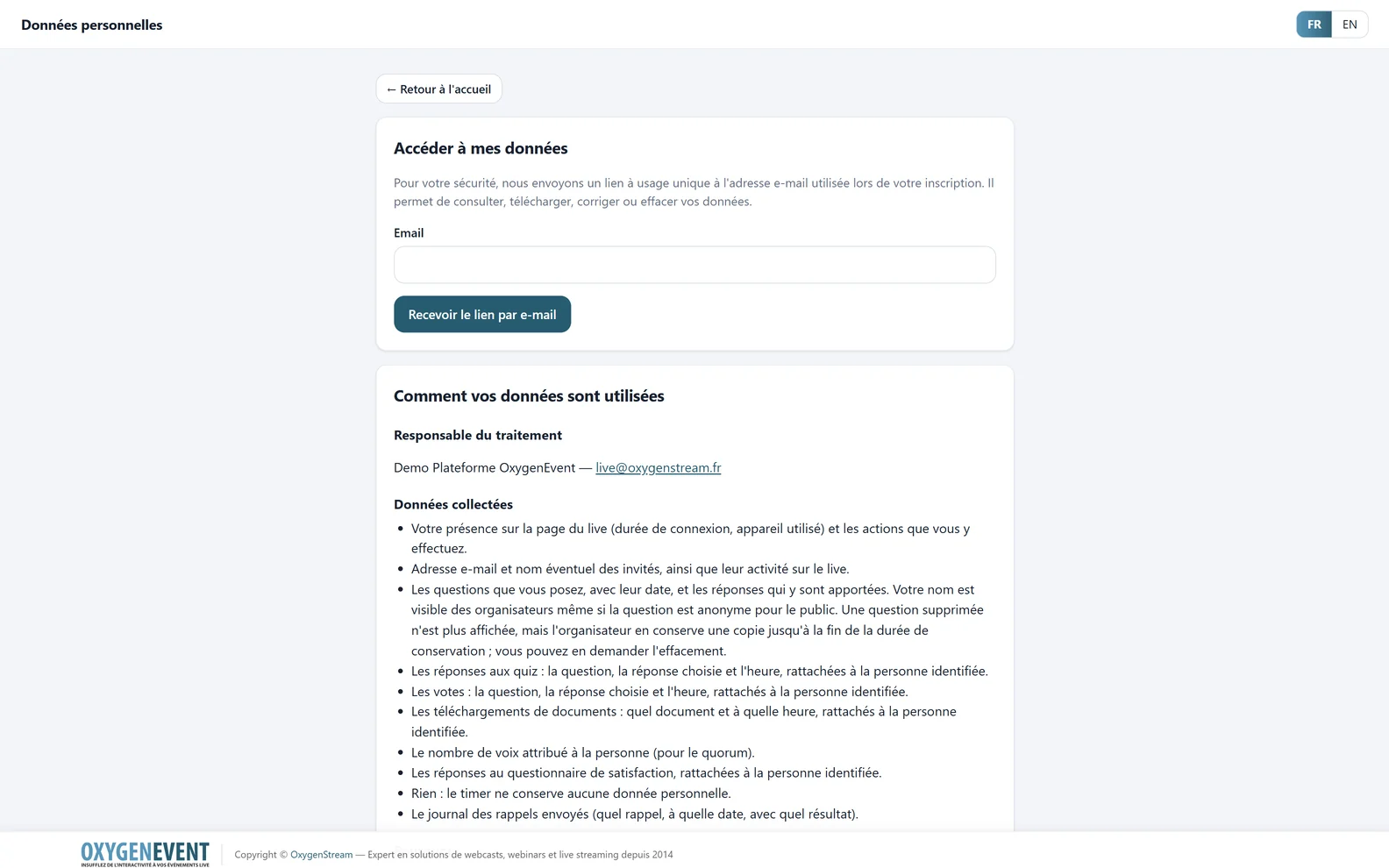
  • Self-service data subject rights: secure access by e-mail, download, correction, deletion.
  • Request register and purge of old data.
  • Protected access: passwords never stored in clear, limited attempts, one active device per attendee.
  • No third-party resources loaded in the pages: fonts and scripts are served by the platform itself.
Personal data page: the attendee edits their questions and answers

Attendees correct or delete their information from the “Personal data” page.

Use cases

Four services to add to your catalogue

One platform, four formats to offer your clients.

Live webinar

Registration, reminders, audience questions, polls and attendance statistics for your clients' webinars.

Online or hybrid general meeting

Filming of the meeting and voting platform: quorum, proxies, resolutions in voting rights and draft minutes.

Live Q&A

Conferences and panels: moderated questions, host page on a tablet, questions from the room by QR code.

Live voting and quizzes

Conventions and seminars: polls over the video, quizzes with a leaderboard, full-screen results on air.

Getting started

Your platform, ready for your next client

We open your space

We install your Super Admin access and walk you through the platform on a real case.

You brand it

Product name, logo, icon, footer and e-mail signature.

You set up your client's event

Modules, access mode, event identity, client rights.

You produce, they host, you deliver

The live show from your control room, then the report and exports to hand over.

Frequently asked questions

You may be wondering…

Will my clients see the OxygenEvent or OxygenStream name?

No, if you fill in the white label: the product name, logo, browser tab icon, footer and e-mail signature are yours. If you leave it empty, OxygenEvent remains on display.

What is the difference with OxygenEvent?

It is the same platform. OxygenEvent is aimed at event organisers; OxygenStage is aimed at you, service provider or agency, so that you can offer it to your own clients under your name.

Can I let my client manage some modules on their own?

Yes. Each module has a “Client access” switch: your client sets up the ones you open to them (their questions, their votes, their registrations) and does not see the others. You switch to their view in one click to see exactly what they see.

Do I need to change streaming platform?

No. The live page embeds the player of your streaming platform, as long as it offers a secure embed address.

How do I bring the results into my production?

Each broadcast page (poll results, quiz leaderboard, room QR code, Timer) has its own address, to add as a browser source in your vision mixer software, in 1920 × 1080, with a dark, light or green background.

Is there anything to install?

No. You, your client, the host, the control room and the attendees simply use a web browser, on computer, tablet or phone.

How many attendees per event?

Each event has its own installation, deployed on a server sized for the expected number of visitors. Tell us your client's expected audience: we size the hosting accordingly.

Is my clients' data kept separate?

Yes. Each client has a dedicated installation and database: no data is shared between your events.

Can I offer a general meeting?

Yes. The General meeting module calculates the quorum live (remote, in the room, by proxy and by postal vote), counts resolutions in voting rights and prepares the attendance sheet and draft minutes in PDF. The applicable rules depend on your client's organisation: they have the set-up validated by their advisor.

Is the platform available in English?

Yes, every page is in French and English, admin area included. Attendees switch language in one click.

What does it cost?

The offer is being built with our first service providers and agencies. Get in touch to talk about it: number of events, modules, support.

Who is behind OxygenStage?

OxygenStream, a company based in Grenoble, France, specialised in filming, live production and live streaming since 2014, which uses the platform for its own events.

Contact

The stage is yours, under your brand

A demo shows you the platform from all three sides: yours, your client's and their attendees'. Let's also talk about your platform: the offer is being built with our first service providers and agencies.

Try it yourself

The online demo, no sign-up needed.Try the demo

Your platform

Number of events, modules, support: let's talk.Suggest a call